Building with Sites
Build and deploy a simple landing page, learn what Sites adds, then use storage, plugins, and automation in Mission Control.
Build a simple landing page
We’ll turn a dictated idea into a specific visual brief, use the repository skills, refine the running page with annotations, and deploy it with Sites.
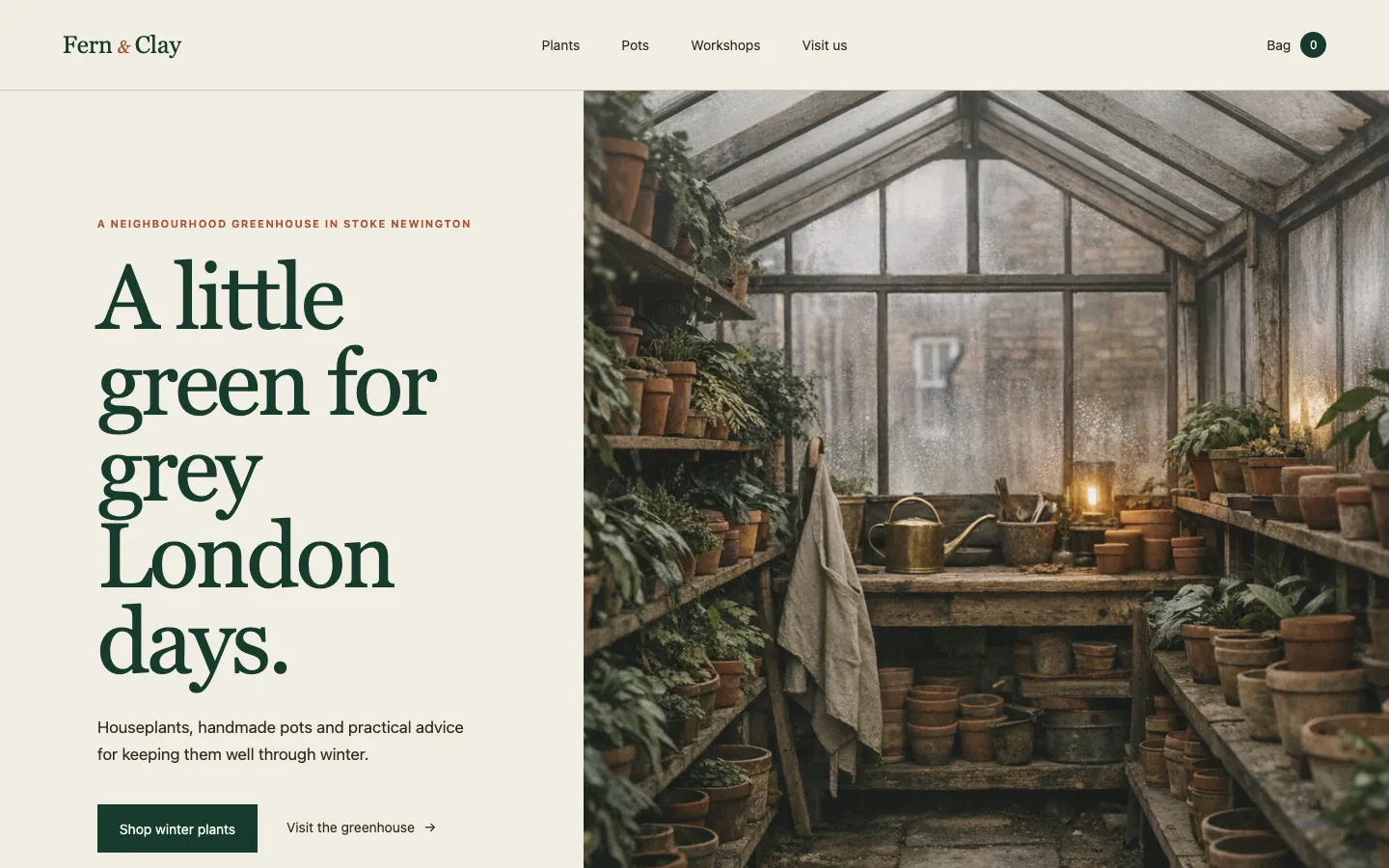
Fern & Clay
A quaint London winter garden with natural materials, terracotta pots, useful shop information, and a small ecommerce flow.
Dictate the idea
Start with the shop, audience, atmosphere, and useful actions instead of writing a perfect prompt from scratch.
Add visual specificity
Name the materials, typography, color, photography, and patterns to avoid so the result does not collapse into a generic template.
Generate the concept
Use image generation for a cohesive greenhouse direction and production-ready page assets.
Load the project guidance
Use AGENTS.md and the provided skills for frontend building, practical copy, and browser testing.
Annotate and iterate
Open the page, point to the parts that need work, and preserve everything that is already correct.
Deploy with Sites
Build, review, and publish the finished landing page from the same task.
Build prompt
Use the same prompt participants will run from the workshop repository, organized here so each part of the brief is easy to explain.
Create a new site in a folder called `lp-example` using Sites.

Build a landing page for Fern & Clay, a fictional neighbourhood plant shop and working greenhouse in Stoke Newington, London.

Use the `design-ui-with-restraint` and `write-practical-copy` skills.
The page should feel like an old London winter garden: fogged greenhouse glass, weathered brick, aged timber, linen, terracotta pots and small brass details. Use a natural palette dominated by deep greens, with muted terracotta, cream and brass accents. Pair an elegant serif typeface with simple, readable supporting typography.

Keep the design warm, editorial and spacious. It should feel authentic and quaint, like a real independent shop people would want to visit—not a generic lifestyle brand or modern dashboard.
Include a strong greenhouse-led hero, plants currently available, practical plant-care help, small workshops, opening hours, local delivery and complete visit information. Keep the copy concrete and useful.
Generate realistic editorial photography for the page using image generation. Show leafy plants throughout, along with the greenhouse interior, plant benches, a potting workshop and the shopfront. Avoid bright colours, glossy surfaces, excessive decoration and clutter.
Make the page responsive, accessible and polished, then publish it privately with Sites.
What Sites is
Sites is the hosting and application layer for building, saving, deploying, and sharing websites and web apps from Codex.
Start from a prompt or an existing project. Codex can build the interface, run it, help you inspect it, save a reviewed version, and deploy that exact version when you are ready to share it.
Access depends on the account and workspace: personal and business environments may expose different visibility and SSO options. Co-editing is still an emerging part of the workflow.
Describe the result and let Codex work in the real project.
Check the running interface, data behavior, and access rules.
Keep a reviewed version without making it live yet.
Publish that saved version with the intended visibility.
Saving a version does not make it live. Deployment is a separate step.
Built-in auth and storage
Sites can handle who is using the app and what the app needs to remember, without adding a separate identity or database layer for the workshop.
Identity and access
Use ChatGPT identity, then choose the visibility that fits the Site: private, workspace, custom, or public when those options are available.
Storage
Store structured records, settings, uploads, and progress, and scope personal data to the authenticated visitor.
Features to know about
Custom domains
Use a custom domain when the Site needs a durable address outside the default hosted URL.
Environment variables
Configure runtime values and secrets without putting credentials into the repository or prompt.
Usage analytics
Eligible Sites show page views and unique visitors without installing a separate analytics package.
Mission
Control
A workday dashboard for priorities, messages, meetings, deadlines, blockers, and tasks waiting on someone else.

Build a Site connected to your data
Build the dashboard, add persistent behavior, and verify that the useful interactions keep working.
Start with safe material
Use the provided fictional messages, meetings, deadlines, and tasks, or explicitly connect an approved source.
Build the dashboard
Create Today, Inbox, Schedule, Waiting on, Deadlines, and a task board that supports real status changes.
Add current context
Use plugins for approved, up-to-date source material without assuming the deployed Site inherits the agent’s connections.
Persist the work
Store manual tasks and status changes per visitor so fixture refreshes do not erase their edits.
Iterate with evidence
Review the running Site, annotate the exact problem, and ask for a narrow change that preserves everything already working.
Verify persistence
Change a status, reload the page, refresh the source fixtures, and confirm that saved decisions are still there.
Initial prompt
Use the workshop repository prompt so everyone starts from the same brief, fixtures, visual direction, and finish line.
Create a new folder called `mission-control` and build a site there using Sites.
Build a responsive personal workday dashboard called Mission Control. Use the fictional data in `fixtures/mission-control-fixtures/` and use `assets/mission-control-moodboard.png` as the visual direction. Translate its colours, tactile materials, soft shapes, generous spacing and playful bento composition into a practical interface; use it as art direction, not as a layout to copy.
Include a day-at-a-glance overview with top priorities, messages needing a response, schedule, items waiting on someone else and deadlines. Add a task board with Urgent, To do, Blocked, Backlog and Done columns. Let people filter by source, open task details, create manual tasks, update task status, refresh the fixture data without overwriting manual changes and reset the demo data.
Keep the interface focused, with one clear title per section and no redundant labels or explanatory chrome. Use durable Sites data so tasks persist across reloads. The site must work entirely from the fictional fixtures without real accounts or integrations.
Make it responsive, accessible and polished, then publish it privately with Sites.
Iterate
Annotate the interface
Click the part of the page you want to change and leave the feedback there.
Make a narrow follow-up
Ask for one specific change, look at the result, then decide what to adjust next.
Automations
Schedule a refresh only after the manual experience works. The automation should update useful source information.
Refresh the source, preserve the decisions
Plugins can provide a fresh snapshot of messages, meetings, tasks, or documents. Storage should keep the user’s manual tasks, notes, statuses, and dismissed items.